How to Organize Your Files in Seedr
What this tutorial covers
You will learn the practical tools for keeping your Seedr account tidy: making folders, moving files around, renaming, searching, and bulk actions like multi-select delete. By the end, "where is that file?" should stop being a recurring question.
Prerequisites
- A Seedr account with at least a few files in it. If your account is empty, add two or three items first — folder management makes more sense with stuff to move around.
- Any modern browser. Drag-and-drop works best on a mouse-and-keyboard device; tap-based reorganising on phones works but is slower.
Walkthrough
1. Create a folder
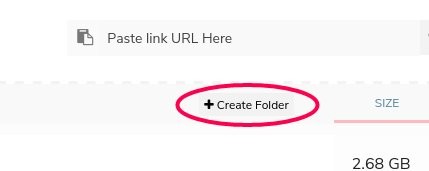
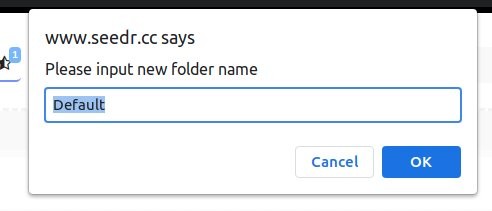
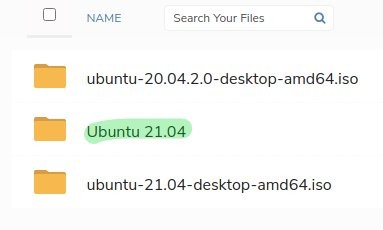
Click Create Folder near the top of the dashboard, just below the link-paste field. Type a name and press Enter. A broad name (movies, work, invoices) is usually better than a deep category tree.
2. Move files with drag and drop
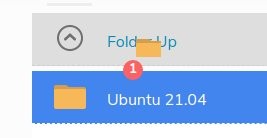
Click and hold an item, then drag it onto a folder. Drop it. A toast at the top confirms the move.
To move something out of a folder and up a level, drag it to the Folder Up link at the top of the file list and drop. The item jumps one level up in the hierarchy.
3. Move files with cut and paste
Drag-and-drop is nice; right-click cut-and-paste is better for moving a file to a folder that is deep or scrolled off-screen.
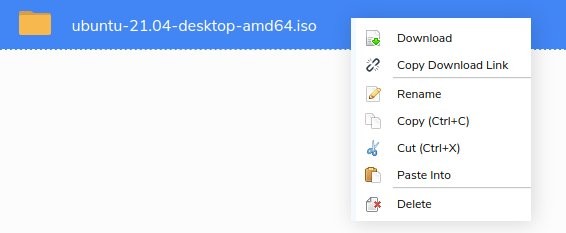
- Right-click the file to move. Click Cut (or Copy if you want to duplicate it). A toast confirms "one item added to the clipboard."
- Navigate to the destination folder.
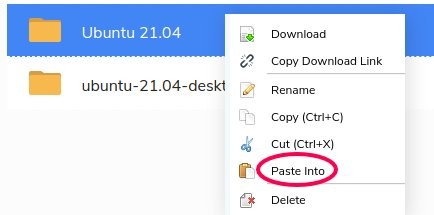
- Right-click on the folder and click Paste Into.
The file moves and a toast confirms the action.
4. Rename a file or folder
Right-click the item. Click Rename. Type the new name and press Enter.
Good names are the single biggest factor in whether you find a file six months later. Do the renames at upload time when you still remember what the file is.
5. Search
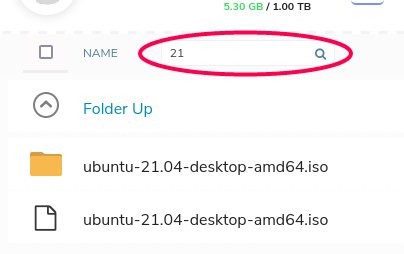
The search field is at the top-right of the dashboard. It searches filenames across every folder in your account.
- Partial matches work — typing "ubuntu" finds every file with ubuntu anywhere in the name.
- Press Enter to run the search. Results list the path so you see which folder each match lives in.
For content-inside-file search, see smart search in Seedr — that is on the roadmap.
6. Sort
Click any column header (name, size, date modified) to sort the current folder by it. Click again to reverse the order. This is a fast way to find the biggest files in a folder when you are cleaning up.
7. Bulk select
Click one file, then:
- Shift-click another file to pick the range between them.
- Ctrl-click (Cmd-click on Mac) to add or remove individual files from the selection.
Right-click the selection to move, copy, or delete all at once. This turns "clean up 30 old downloads" from a 30-click job into three clicks.
8. Delete
Three ways:
- Hover icon. Hover a file and click the x that appears. Quickest for one-off deletions.
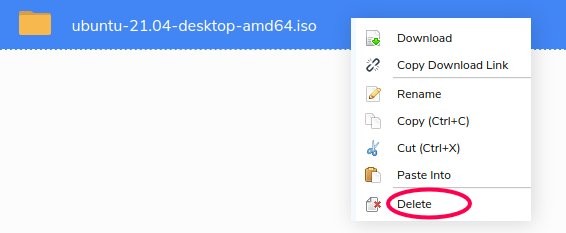
- Right-click → Delete. Works on single items or a multi-select.
- Delete key. Select an item (it highlights blue) and press the Delete key on your keyboard.
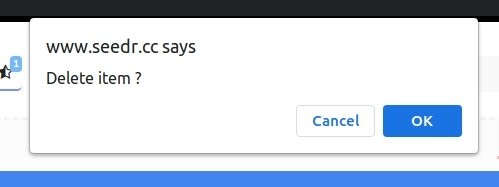
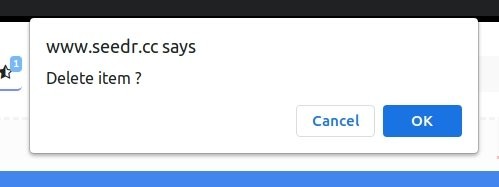
Each deletion asks for confirmation. Press Enter or click OK to confirm. Deletes free up storage immediately.
Common mistakes
- Nesting folders too deep. Three levels deep and you will stop opening them. Flatter is better — prefer good filenames over deep hierarchies.
- Relying on "I will rename it later." You will not. Rename at the moment you save the file, while you still know what it is.
- Forgetting bulk select exists. People delete 40 files one-click at a time. Shift-click or Ctrl-click first, then one right-click handles everything.
Related reading
- How to use Seedr — beginner's tutorial if you are new to the dashboard.
- Upgrade your Seedr account when your storage bar is getting tight.
- Smart search in Seedr to see what's coming for content-aware search.
Wrap
Folders, clear names, and bulk-select are the three habits that separate a tidy Seedr account from a dumping ground. Set them up in the first week and your future self will thank you.


.jpg)
Was this article helpful?
Related Articles

How to open HEIC photos online on Windows, Android, or any browser
Open iPhone HEIC photos from any device in Seedr’s cloud viewer — no conversion, no codecs, no extra apps — and keep them organized alongside your other files.

Connect Seedr to Infuse (iOS, tvOS, macOS)
Learn how to easily connect your Seedr account to the Infuse app using WebDAV or FTP. View 4K media directly to your Apple TV or iOS device without saving.

Three ways to add links and files in Seedr V2
Learn how to use Seedr V2’s Link button to add media links, scan webpages, upload files from your device, and share to Seedr via PWA or browser extensions.